Container Connector(CC) Setup
The official Container Connector documentation is here: Install the F5 Marathon BIG-IP Controller
In a Mesos / Marathon environment, the name of the product is Marathon BIG-IP controller.
BIG-IP setup
To use F5 Container connector / Marathon BIG-IP Controller, you’ll need a BIG-IP up and running first.
In the lab, you should have a BIG-IP available at the following URL: https://10.2.10.60.
Warning
Connect to your BIG-IP from the Jumpbox RDP session instead of going directly to it. Its login and password are: admin/admin
Note
If you’re not running this lab at Agility, you need to aquire a valid LTM VE license for this lab. No specific add-ons are required
You need to setup a partition that will be used by F5 Container Connector.
To do so, go to : System > Users > Partition List. Create a new partition called “mesos”
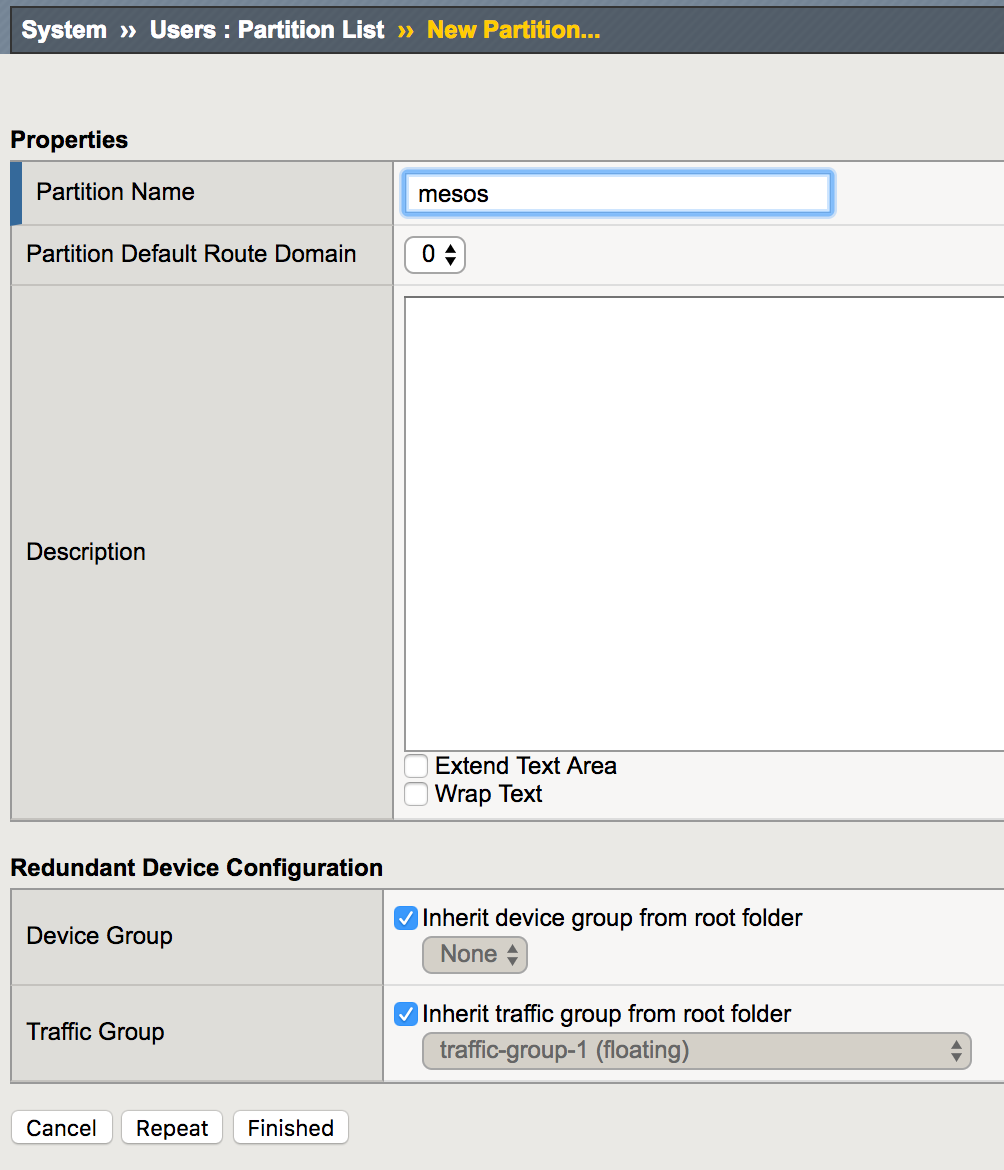
Once your partition is created, we can go back to the Marathon interface
Marathon BIG-IP Controller installation
To deploy our Marathon BIG-IP Controller, we need to either use Marathon UI or use the Marathon REST API. For the class we will be using the Marathon UI.
- Connect to the Marathon UI on http://10.2.10.10:8080 and click on “Create Application”.

- Click on “JSON mode” in the top-right corner
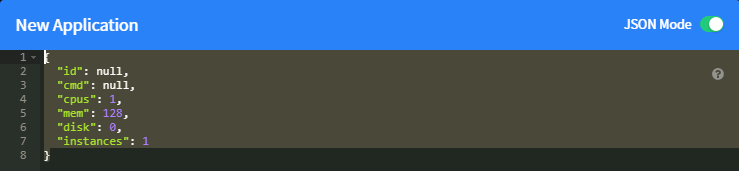
REPLACE the 8 lines of default JSON code shown with the following JSON config:
{
  "id": "f5/marathon-bigip-ctlr",
  "cpus": 0.5,
  "mem": 64.0,
  "instances": 1,
  "container": {
    "type": "DOCKER",
    "docker": {
      "image": "f5networks/marathon-bigip-ctlr:1.0.0",
      "network": "BRIDGE"
    }
  },
  "env": {
    "MARATHON_URL": "http://10.2.10.10:8080",
              "F5_CC_PARTITIONS": "mesos",
    "F5_CC_BIGIP_HOSTNAME": "10.2.10.60",
    "F5_CC_BIGIP_USERNAME": "admin",
    "F5_CC_BIGIP_PASSWORD": "admin"
  }
}
- After a few seconds you should have a 2nd application folder labeled “F5” as shown in this picture.
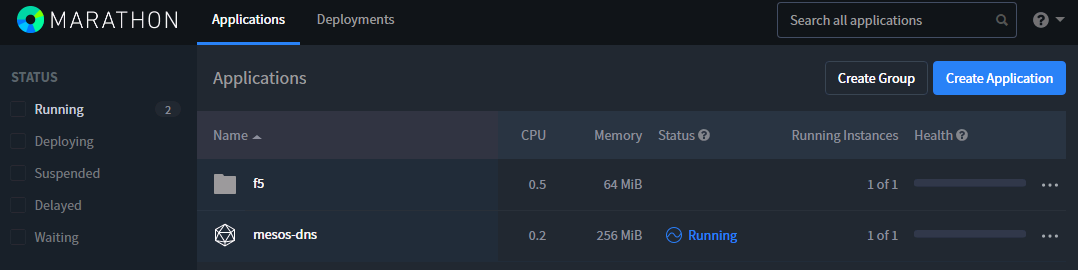
- Click on the “F5” folder and you should have running the BIG-IP North/South Controller labeled marathon-bigip-ctrl

Note
If you’re running the lab outside of Agility, you need may need to update the field image with the appropriate path to your image:
- Load it on all your agents/slaves with the docker load -i <file_name.tar> command. If you haven’t retrieved it, you can also do a sudo docker pull docker pull f5networks/marathon-bigip-ctlr for the latest version.
- Load it on a system and push it into your registry if needed.
- If your Mesos environment use authentication, here is a link explaining how to handle authentication with the Marathon BIG-IP Controller: Set up authentication to your secure DC/OS cluster
If you need to check the Marathon BIG-IP Controller you can do the following:
- Check the logs
- Connect to the container
To check the logs, you need to identify where is the Controller running. In Marathon UI:
- Click on Applications
- Click on the f5 folder
- Click on marathon-bigip-ctlr
you should see something like this :
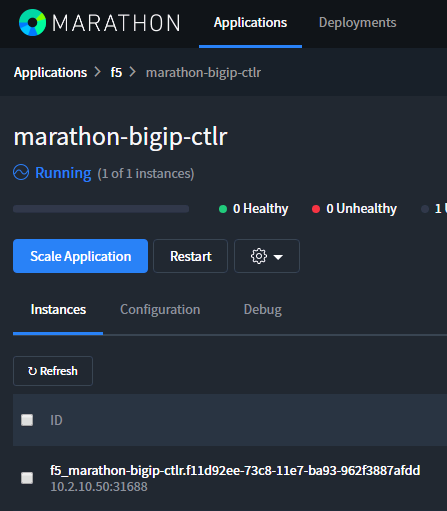
Here we can see that the Controller is running on 10.2.10.50 (which is f5-mesos-agent2). Connect via SSH to f5-mesos-agent2 and run the following commands:
sudo docker ps
This command will give us the ID of our Controller container ID, here it is : 20b39baccfba. We need this ID for the next few commands

To check the logs of our Controller:
sudo docker logs 20b39baccfba
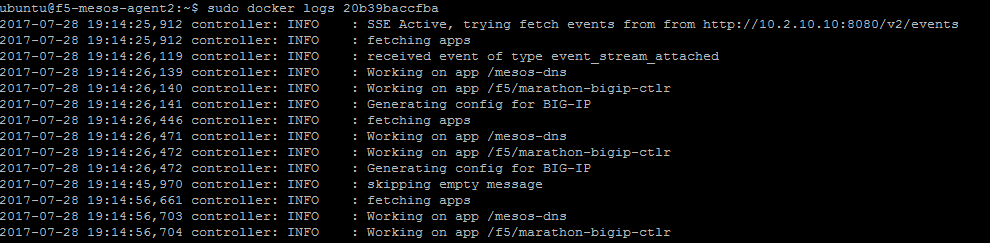
To connect to our container with a Shell:
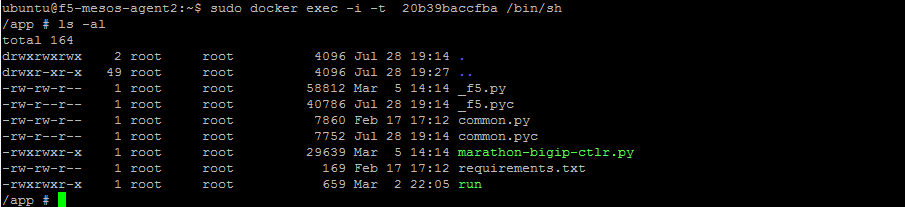
sudo docker exec -i -t 20b39baccfba /bin/sh